Your own server, in a few clicks
An Iskra server is a folder on a computer you choose: messages, members, files and keys, all in one place you own. Pick the way that fits your group. You can move it later, and everyone follows.
Your server, your choice. Iskra charges nothing; it's just a guide. (One exception, said plainly below: the DigitalOcean link is our referral link.)
Pick your way
Host on your computer
Click Create a server in the desktop app. It runs on your Windows, Mac or Linux computer, voice included, and you're the owner.
Show me how →Rent a small server
Always on, even when your computer is off, and it works on any home connection. The app sets it up for you: no terminal.
Show me how →Standalone server
For tinkerers: one program for Windows, Linux, macOS or a Raspberry Pi. Great for an always-on box at home or your own VPS.
Show me how →Create a server in the app
The server runs on your computer while Iskra is open. Friends on your home network can join right away.
- Get the appDownload Iskra for Windows, macOS or Linux and install it. Phones can join servers, but a server needs a computer.
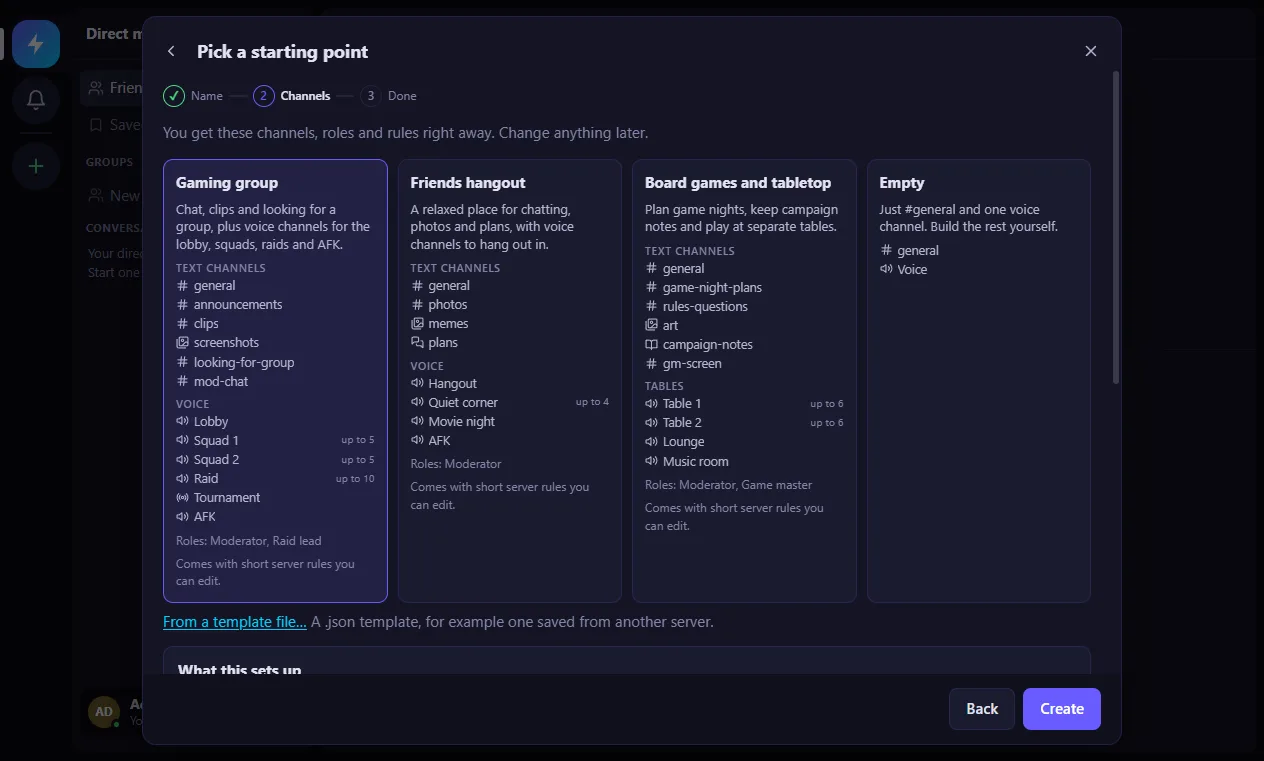
- Click Create a serverGive it a name and pick a starting point: Gaming group, Friends hangout, Board games and tabletop or Empty. Channels, voice channels, roles and rules are ready; change anything later.
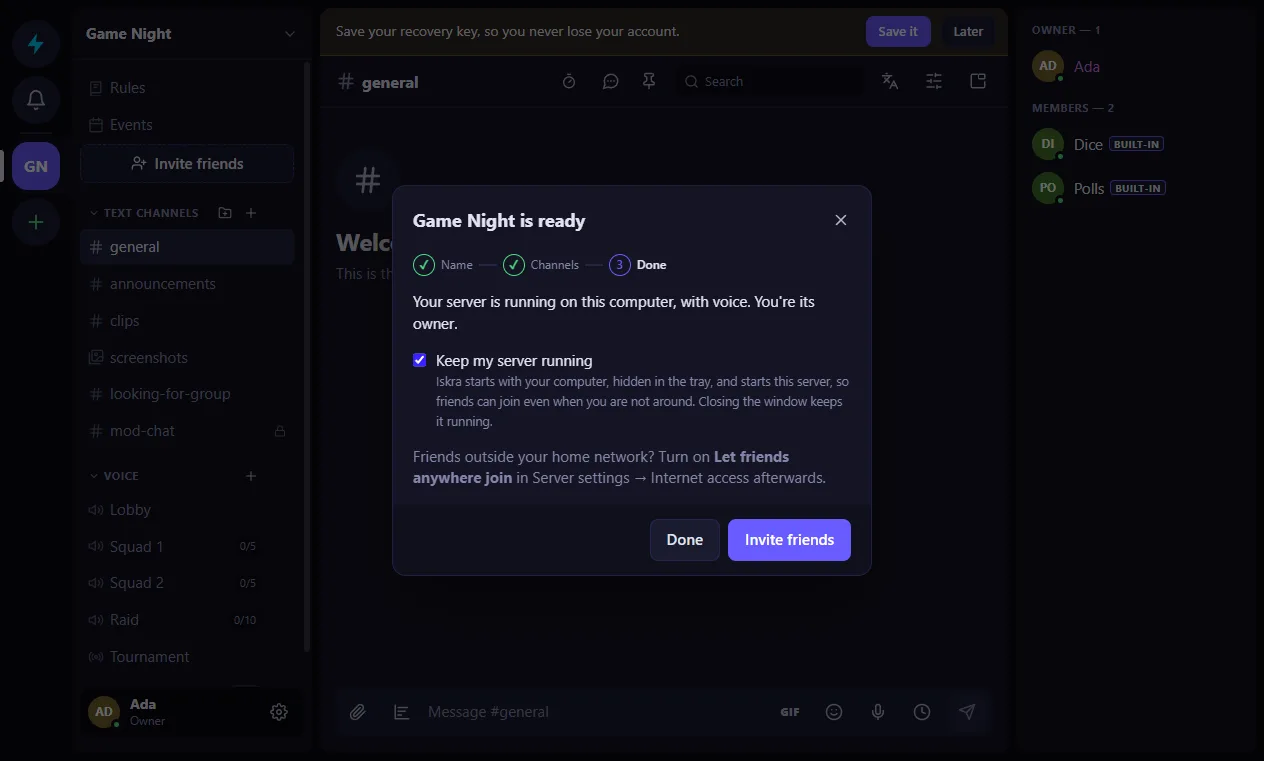
- Tick Keep my server runningIskra then starts with your computer, quietly in the tray, and starts your server, so friends can join when you're not around.
- Invite friendsClick Invite friends and send them the link. They pick a name and they're in: no email, no password.
Let friends anywhere join
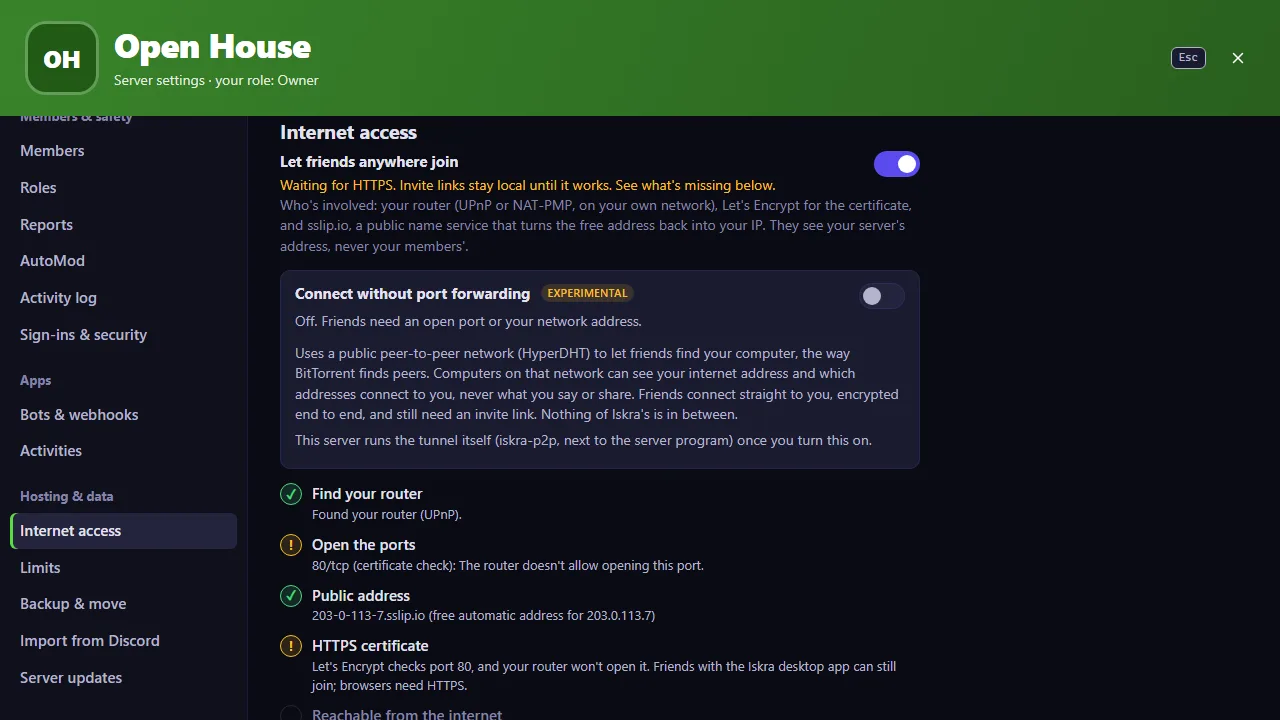
For friends outside your home, open Server settings → Internet access and turn on Let friends anywhere join. It works the same for the desktop app and the standalone server.
- Opens the portsIskra asks your router to open them (UPnP or NAT-PMP) while the server runs, and closes them when it stops.
- Gives your server an addressA free name that points at your home connection, like
203-0-113-7.sslip.io. - Gets an HTTPS certificateFrom Let's Encrypt, so friends can join from any browser, phones included.
New invite links use the public address, and Iskra checks again every few minutes, so a router restart or a new address is picked up by itself. No outside service is asked: everything comes from your router's own answers.
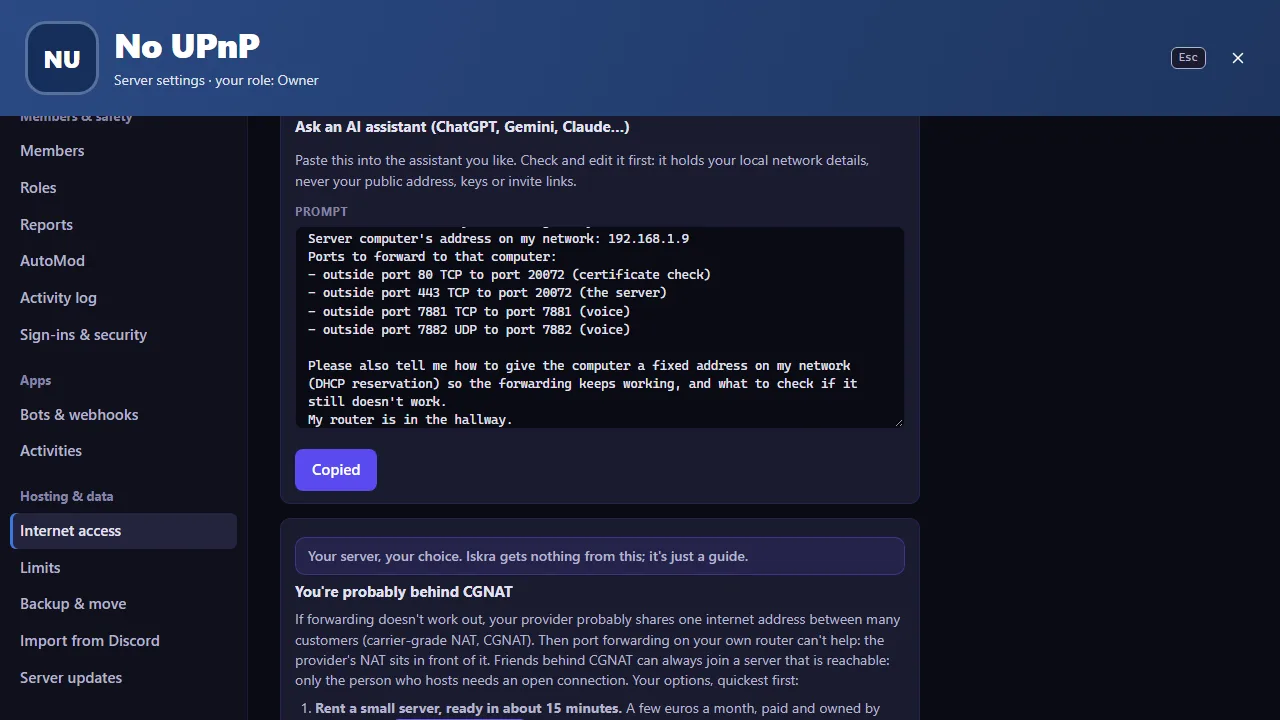
If your router won't open the ports by itself, Forward the ports yourself lists every step. Copy a prompt for an AI assistant fills in a question for ChatGPT, Gemini, Claude or any other assistant with your router's model, this computer's address and the ports. You can edit it before copying; it never includes your public address, keys or invite links.
What's CGNAT, and what can I do?
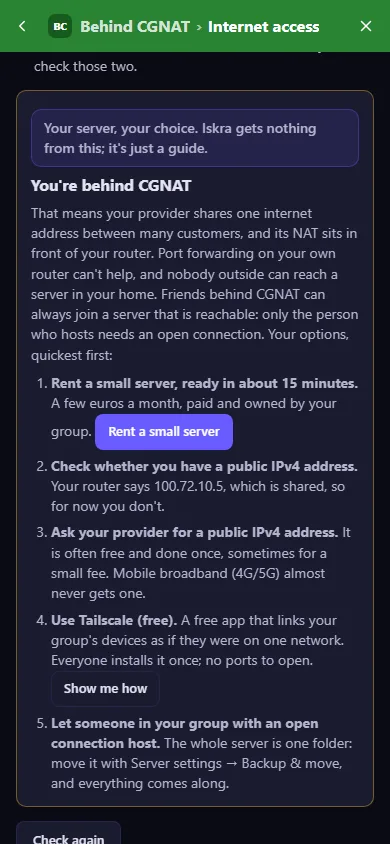
Some internet providers share one internet address between many homes. It's called carrier-grade NAT, or CGNAT, and it's common on fiber, cable and mobile broadband. It's normal, but it means nobody outside can reach a server in your home, and opening ports on your own router can't fix it: the provider's equipment sits in front of it.
Iskra tells you when it finds this. Friends behind CGNAT can always join a server that's reachable; only the person who hosts needs an open connection. Your options, quickest first:
Always on, set up by the app
A small virtual server at a hosting company runs Iskra for your group all the time, even when every computer at home is off. Your group picks the provider, pays it and owns the server.
- Start in the desktop appCreate a server → Rent one on DigitalOcean, or Server settings → Internet access → Rent a small server.
- Connect your accountSign in to DigitalOcean in your browser and allow Iskra. The key stays in the app on your computer and is forgotten when setup is done.
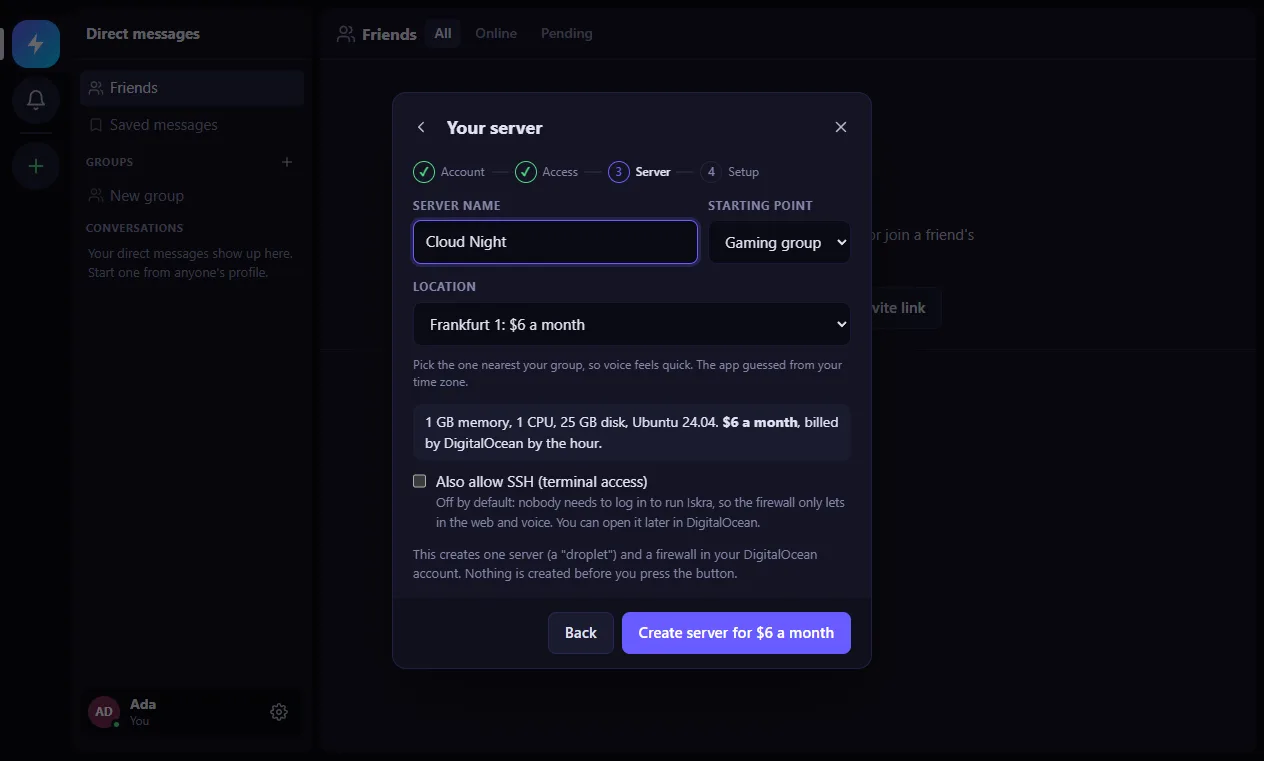
- Pick a place and a nameThe app suggests the nearest location and shows DigitalOcean's own price first: about $6 a month. Nothing is created before you press the button.
- Wait a few minutesThe app sets up the server, its firewall and HTTPS, checks it really is your server, and makes you the owner. Daily backups and automatic updates are on.
- Save your server documentOne file with the address, costs and how to cancel, backups, moving, and a prompt for an AI assistant. No passwords or keys in it.
Another provider? Rent a small server works anywhere you can make an Ubuntu or Debian server (Hetzner, for example, at about €4 a month): the app gives you a setup text to paste when you create it, then connects and makes you the owner.
Plain about money: Iskra charges nothing. The DigitalOcean sign-up link in the app is Iskra's referral link, and the app says so: Iskra gets a little DigitalOcean credit that helps pay for our own server. You pay DigitalOcean directly; we never see your server or your card.
For tinkerers: the server on its own
One program, voice included, for Windows, Linux (x64 and ARM, Raspberry Pi 4 and 5), and macOS. Ideal for an old PC, a mini PC or a Raspberry Pi that's always on.
- Download and unpackGet the server for your system from the download section.
- Start itRun
iskra-server my-server. It creates the foldermy-serverthat holds everything. - Become the ownerOpen the one-time owner link it prints, in the Iskra app or at app.iskra.foo, then invite your friends.
- Start it with the computer
iskra-server install-autostart my-serversets it up for Windows, Linux or macOS.
- An Iskra box at home: picking a box, a Raspberry Pi on a microSD card or SSD, starting with the computer, updates and power use.
- On a Linux VPS with systemd, your own domain and HTTPS, and every setting in server.json.
- Server templates: start from a template, or write your own.
Good to know
The short answers. Each one links to the full details.
Which ports does a server use?
47070/tcp: the server itself (app, invites, uploads). Always.80/tcpand443/tcpto the server's port: HTTPS for friends, with Let friends anywhere join.7881/tcpand7882/udp: voice and video from outside your network.
Let friends anywhere join opens them for you when your router allows it. Ports at a glance
Windows or macOS asked about the firewall. What do I pick?
The first time a server starts, Windows may ask once to allow Iskra and its voice service on your network, and macOS may ask to let Iskra accept incoming connections. Click Allow so friends can join. If you clicked the other button, friends on your network can't reach the server: allow Iskra in your system's firewall settings.
Can I host a server on my phone?
No. A server runs on a computer that stays on: your own Windows, Mac or Linux computer with the Iskra app, or a small rented server. Once it's running, you can chat and talk from your phone, in the browser or the app.
What happens when my computer is off?
Your server is offline until it starts again; nothing is lost. With Keep my server running, it starts by itself with your computer. For a server that's always there, rent a small one or use an always-on box at home.
How do backups work? What are backup buddies?
Every server keeps a backup of itself every day (the last 7). As the owner you can also download a full, encrypted backup any time in Server settings → Backup & move, or copy the daily ones to another disk.
Backup buddies send each daily backup to a friend's Iskra server, encrypted so they can't read it, and you can keep theirs. If your computer is lost, you restore from theirs with your recovery code. Backups in detail
Can I move my server to another computer later?
Yes. The whole server is one folder. Use Server settings → Backup & move → Move this server: make a backup, restore it on the new computer (in the app: Create a server → Restore from a backup), and enter the new address. Everyone's app checks the server's signed notice and follows by itself, with members, roles, channels and history. Moving in detail
Can I bring my Discord history over?
Yes. Export your Discord channels with DiscordChatExporter, then upload the export in Server settings → Import from Discord. Each channel comes along with its messages, replies, pins and files, labelled as imported. Importing from Discord
Want every detail? The hosting reference covers each way to run a server, the internet settings, Tailscale, backups, moving and every setting in server.json.